
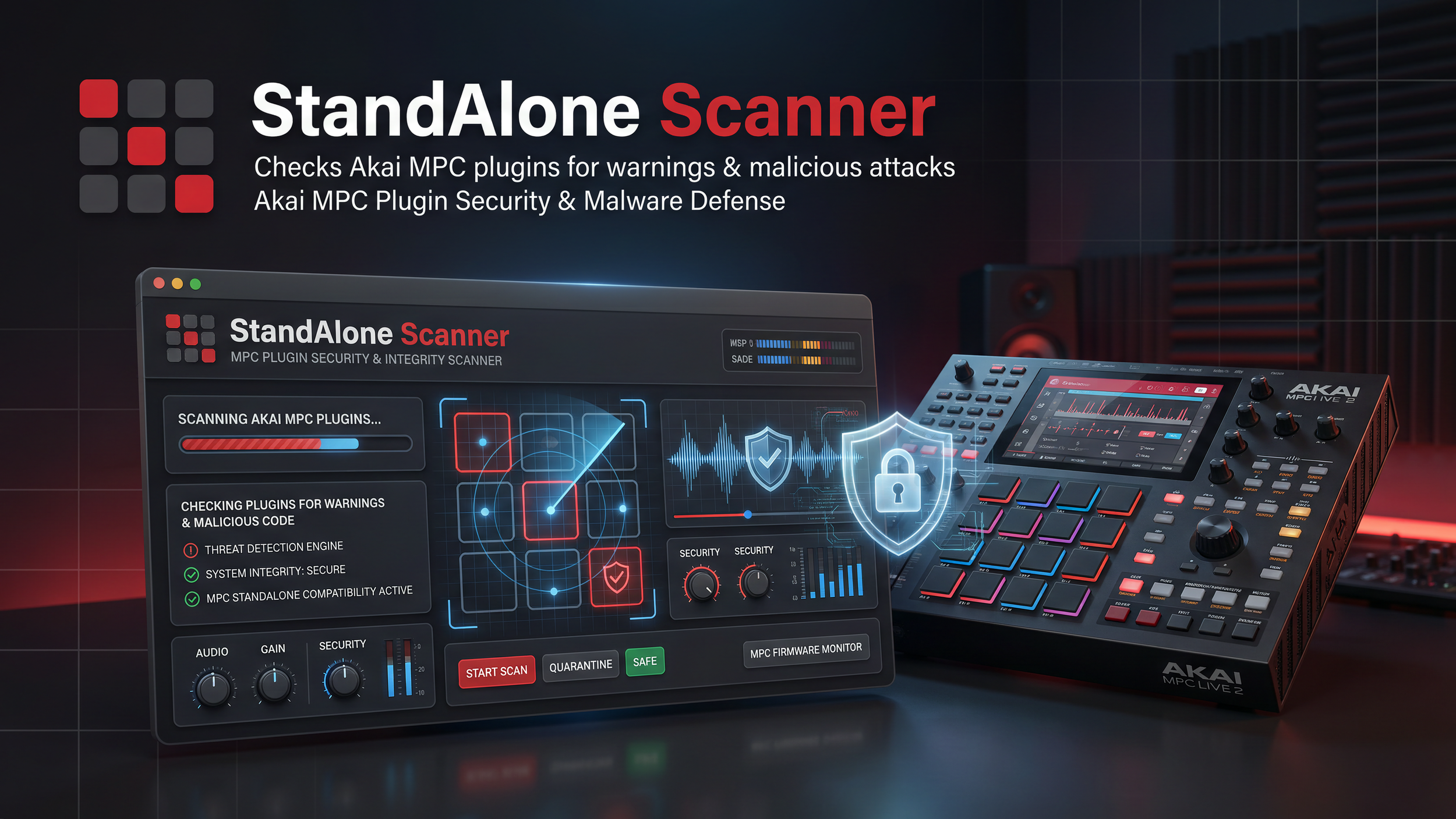
StandAlone Scanner
$29.00
StandAlone Scanner
Check every MPC plugin before it touches your MPC.
StandAlone Scanner looks for warning signs in plugins for Akai MPC standalone hardware. Check a download before you install it, an SD card or USB stick, or your MPC itself over Wi-Fi. It only reads files, never runs plugin code, and tells you in plain English what it found: GREEN, YELLOW, or RED.
For Windows and Mac. One license works on two computers, from Petrol Media Inc.
Button: Buy StandAlone Scanner
Note for the site: the button links to StandAlone Scanner's checkout page on Polar. After payment, Polar emails the buyer their license key and the Windows and Mac downloads, and keeps both on the buyer's Polar purchases page.
Why it matters
A plugin isn't just sounds. It's a program that runs inside your MPC, with the same access as the MPC software itself. Since MPC OS 3.10.1, anyone can build one, and no app store vets every plugin before it reaches you.
A harmful plugin could send your files or account details somewhere, open your MPC to everyone on your network, or damage the system so it won't start. Most plugin makers just want to share good tools. StandAlone Scanner helps you spot the few who don't.
Three ways to check
Drop in a download, click Check next to a card, or type your MPC's address.
A download - Before you copy a new plugin to your MPC - The zip you downloaded
An SD card or USB stick - Before a card goes into your MPC, or to check what's already on it - The card plugged into your computer
Your MPC over Wi-Fi - To see what's installed and running on the MPC itself, on its internal storage and every card or drive in it - Developer mode switched on, and your computer on the same Wi-Fi
What it looks for
StandAlone Scanner checks for the warning signs a harmful plugin would leave, in three places.
Inside a plugin's program files
Code that connects to the internet or your network
Code that starts other programs on the MPC
Hidden or disguised code: packed programs, functions looked up by name, direct system calls, and extra program files a plugin doesn't declare
Mentions of passwords, login tokens, account details and sensitive system files
Web and internet addresses written into the code
In the download or on the card
Zip tricks: files that unzip outside their folder, links, damaged or password-protected parts, and zip bombs
Anything aimed at your computer instead of the MPC, such as Windows programs, Mac apps, installers and shortcuts
Plugin screens that try to send you to a website or ask you to sign in
Autorun folders and device scripts that run code on the MPC
Open MPC catalog downloads checked against the catalog's fingerprints, and install scripts compared with the community's own
On the MPC itself
Every plugin and addin on its internal storage, SD card and USB drives
Code loaded into the MPC software when it starts
Startup services, programs listening on your network, login keys and scheduled jobs
MPC OS's own parts are recognised, so an untouched MPC comes out clean
Clear results
Every check ends in one of three colours, and every finding says what it means and what to do, in plain English.
Result
What it means
What to do
GREEN - None of the warning signs the scanner knows about turned up - Install as usual, and check again after updates
YELLOW - Something unusual, or powerful by design - Read each item; most are settings or tools you can judge for yourself
RED - Serious warning signs - Don't install it, and let the place you got it from know
Save any report as a text file to keep, or to send to the plugin's maker or a friend who can help.
Private and read-only
StandAlone Scanner looks, and nothing more.
It runs on your computer. Its window opens in your web browser, but the page comes from the app itself and can't be reached from the network.
It never runs plugin code. It reads files and compares what it finds with what a harmful plugin would contain.
It changes nothing on your MPC. The Wi-Fi check only reads and reminds you to switch Developer mode off when you're done.
No tracking. Nothing about your MPC, your plugins, or your checks is ever sent anywhere. The internet is only used to activate your license key, when just the key and an anonymous ID for your computer go to Polar, the store that issues the keys, and when you choose to update the Open MPC plugin catalog.
Your MPC's password stays yours. If your MPC uses one, it's forgotten when you close the page, unless you tick Remember. Then it's kept in Windows Credential Manager or the Mac Keychain, never in a plain file.
Requirements and downloads
One download per computer, about 14 MB each. No installer and nothing else to install.
Supports: Windows 10 or 11, Apple Silicon (M1 or Newer), Intel Mac (macOS 11 or Later)
Not sure which Mac you have? Open the Apple menu and choose About This Mac: it says "Chip: Apple M…" or "Processor: Intel…".
Your MPC: standalone MPC hardware running MPC OS 3.10.1 or later. Checking the MPC over Wi-Fi needs Developer mode switched on. Tested on the MPC One+.
Any web browser: Chrome, Edge, Safari or Firefox.
A license key: one key works on two computers, Mac or Windows. Activating needs the internet once.
Getting started
You can run your first check in about a minute.
Buy StandAlone Scanner, then download the file for your computer from your receipt email or your Polar purchases page.
Open it. The first time only, your computer asks you to confirm:
Windows: if "Windows protected your PC" appears, click More info, then Run anyway.
Mac: unzip it, drag StandAlone Scanner into Applications and open it. When macOS says it can't check the app, click Done, then go to System Settings > Privacy & Security and click Open Anyway.
The scanner opens in your web browser. The first time, paste the license key from your receipt email and click Activate. Then drop in a download, or click Check next to a card.
To check your MPC, switch on Developer mode, type its network address and click Check my MPC. Switch Developer mode off when you're done.
Note for the site: step 2 gets simpler once the apps are signed with Petrol Media's developer certificates. Update it then.
Frequently asked questions
Do I need an internet connection? Only to activate your license key, once. After that, checks run entirely on your computer. The scanner re-checks your key about once a week when it can, and keeps working for 30 days without a check. The internet is also used if you choose to update the Open MPC plugin catalog.
How many computers can I use it on? Two, for example your Mac and your Windows PC. To move to a new computer, click License, then Remove this computer, on the old one, or remove it on your Polar purchases page. Then activate the key on the new one.
I can't find my license key. It's in your receipt email, and on your Polar purchases page: sign in there with the email address you bought with.
Why does it open in my web browser? The browser is just its window. The page comes from the app on your computer, not from the internet, and nothing you check leaves your computer.
Does it change anything on my MPC? No. Every check only reads. It never installs, removes or changes anything on the MPC.
Does my MPC need a password? Usually not: Developer mode normally needs none. It's not your Remote Screen password or your Wi-Fi password. If your MPC does ask for one, type it in the password box.
How long does a check take? A download or a card plugged into your computer takes seconds. Checking an MPC over Wi-Fi reads every plugin on it, so a full card can take a few minutes, depending on your network. You'll see the progress as it goes.
Does GREEN mean a plugin is safe? It means none of the warning signs the scanner knows about turned up. No checker can promise more than that. Get plugins from sources you trust, and check again after every update.
Does it work with Open MPC plugins and the Plugin Manager? Yes. It recognises releases from the Open MPC catalog, checks them against the catalog's own fingerprints, and knows the Plugin Manager. Click Update plugin catalog to keep that list current.
Why does my computer warn me the first time I open it? Windows and macOS ask before opening apps from small, independent developers. Confirm once, as shown under Getting started, and it opens normally from then on.
StandAlone Scanner is an independent product of Petrol Media Inc. It is not made by, affiliated with or endorsed by Akai Professional, inMusic Brands, Inc. or the Open MPC project. MPC and Akai Professional are trademarks of inMusic Brands, Inc.
A GREEN result means no known warning signs were found. It is not a guarantee that a plugin is safe.
© 2026 Petrol Media Inc. All rights reserved.